

Ranked guide: Quick Verdict. For a supported Android phone, after checking USB storage, app requirements and the Pixel 8+ restriction, I would compare ThePhotoStick Omni X first. Its integrated connectors make the setup clearer. Choose an ordinary compatible drive if you already manage files comfortably; choose a larger external SSD for a large working video library. Keep another independent copy and verify retrieval.
Choosing the best photo stick for Android phones means checking more than the charging socket. The phone must support the intended external-storage connection, the backup app must support your Android version and the app needs access to the files you intend to copy. Some phones have microSD slots and others do not; neither a memory card nor a USB stick automatically creates a second backup.
My Android photo-backup shortlist
- ThePhotoStick Omni X: guided local copying for supported devices with integrated connectors.
- ThePhotoStick Omni — an alternative guided phone-and-computer workflow.
- Picture Keeper Connect — compare exact connector kit, capacity and app support.
- A compatible USB drive — manual copies through a supported file manager.
I assess backup job fit, compatibility and file integrity, use and restoration, and ownership value. Omni X scores 4.0/5 for supported mixed-device use; the earlier Omni remains conditional at 3.5/5. Check the actual Android device and current app requirements before choosing.
1. ThePhotoStick Omni X: guided backup for supported devices
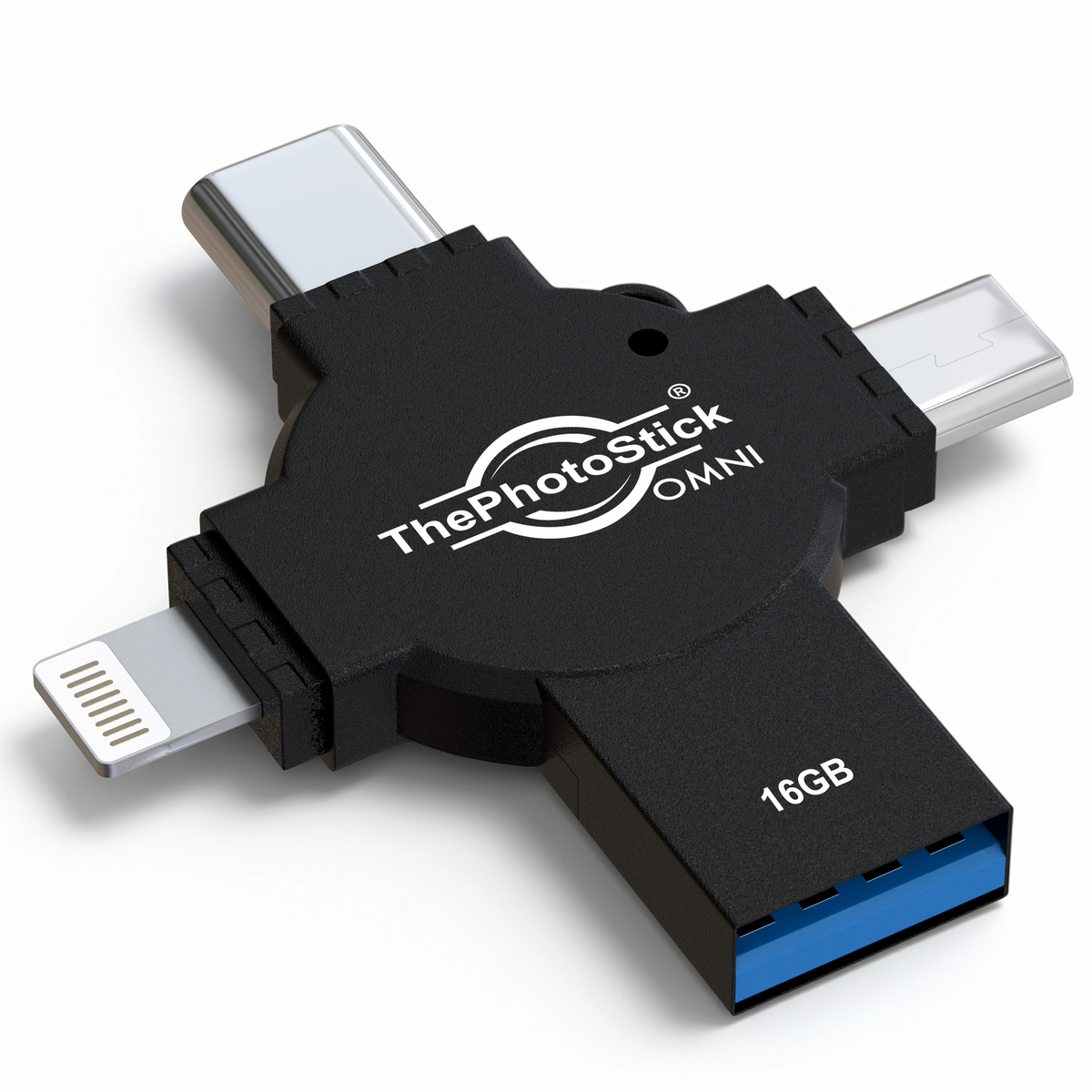
Omni X is my first current comparison for a supported Android phone, after checking USB storage, app requirements and the Pixel 8+ restriction. USB-A, USB-C, Lightning and Micro-USB are integrated into the device. The app still needs support for your exact phone and permission to read the media you intend to copy; a plug that fits is only one part of compatibility.
Buy capacity from the actual size of your library, download cloud-only originals where needed and verify saved files before removing anything from the source. It is a guided copying tool, not continuous, whole-device or off-site backup. A working earlier Omni can remain a sensible value choice.
Read the full Omni X review for my 4.0/5 assessment and the exact requirements. Clickfree is outside this buying shortlist while its offer is paused because of backorders.
2. ThePhotoStick Omni: an alternative guided workflow

Omni is still relevant for a household wanting guided media backup across supported Android phones and computers. Compare the included connector arrangement, available capacity, app requirements and current total price. Do not assume the original Omni, Omni X and older Android Mobile products offer identical hardware or software.
The manufacturer’s current requirements are a better starting point than old Android-version claims in a reseller listing. The phone workflow uses the relevant app and access permissions. A drive cannot automatically copy a cloud-only original that the phone has not made accessible.
My Omni review explains the 3.5/5 verdict and the compatibility, flexibility and value tradeoffs. If you already own an Omni that makes checked, restorable copies, a higher score elsewhere is not a reason by itself to replace it.
3. Picture Keeper Connect: a different package to compare

Picture Keeper Connect is the relevant family for direct phone use. The official compatibility chart distinguishes it from the brand’s computer-oriented models. Match the specific Connect kit to your phone and check whether it includes the connector or adapter you need.
I would consider it when its package and support information fit your household better than the other guided options. Capacity, app support and a usable restore matter more than a marketing estimate of how many photos fit. Confirm how it handles your important formats and a large video. See the Picture Keeper review and manufacturer device guidance before choosing a version.
4. An ordinary compatible USB drive: manual copying
For a confident file manager, an ordinary flash drive can be a sensible way to create a local copy. Files by Google supports working with USB storage on supported Android devices. Your phone, connection and drive still need to work together; not every device or app uses the same screens.
The advantage is control over folders and file types. The disadvantage is that you must choose what to copy and check what arrived. Camera photographs, downloaded files and images saved by messaging apps may be in different places. A selected folder copy is not an automatic backup of every app’s private data, nor a restorable image of the whole phone.
Choose this route if you are comfortable checking source and destination folders. Choose a guided product if the extra software makes you more likely to repeat the process. Neither route removes the need for another independent copy.
Why an Android backup may miss files
Start with a small sample copy. What is missing?
Check host/USB support, connection, power and supported drive format.
Check selected folders, access permissions and whether originals are local.
Check free space, file-system limits and app-supported file types.
Then: open copied files from the destination and test retrieval before deleting anything.
File formats, large videos and usable capacity
Measure your collection in gigabytes rather than relying on a photo-count promise. Videos, RAW files and edited copies can dominate the total. A nominal 128GB drive cannot hold a 140GB library, and usable capacity is lower than the label. Leave space for the photographs you will take next.
Check the drive’s file system and the app’s supported formats if a large video is skipped. FAT32 has a per-file limit of roughly 4GB; a drive can show plenty of free space and still be unable to hold one large file. Picture Keeper’s large-file support guidance explains this situation. Do not reformat a drive without first protecting anything already on it and checking the new format is supported by every intended device.
Cloud photos and phone storage are separate questions
A thumbnail in a gallery does not guarantee that the full original is stored locally. If photographs are held only in a cloud account, download the intended files while you have a connection and enough working space. Local copying can then be useful while travelling, but install and test the app before leaving.
A microSD card inside a phone may give supported phones more storage, yet it is still vulnerable if the whole phone is lost. Keep the backup separately and keep another independent copy. Be careful with cloud synchronisation too: understand whether deleting a file will remove it from other places.
Before you clear space on the phone
- Copy a small mix of camera images, an older photo, a downloaded image and a large video.
- Open the destination files and confirm the expected dates, names and playback.
- Try retrieving a file through the device you would use if the phone failed.
- Make another copy and schedule repeat backups after important events or trips.
Never treat an app’s completion message alone as permission to delete the originals. If a file is missing, investigate the source folder, permission, format and size first. Avoid destructive cleanup or formatting while a single copy is all you have.
My final recommendation
For a supported guided phone-backup workflow, start with ThePhotoStick Omni X. Choose ordinary compatible storage when manual copying is comfortable, or a larger SSD for a substantial video library. The strongest choice is the one you can use repeatedly, verify and back up independently.
For a mixed household, see the iPhone guide, the broader photo-stick guide and larger photo-storage options.
Frequently asked questions
Does every Android phone support a photo stick?
No. Check the exact phone’s external-storage support, connector, operating-system version and the current app requirements.
Will a USB-C connector guarantee compatibility?
No. The phone must recognise the drive and the app or file manager must support the copying workflow. Check the exact devices together.
Can I back up Android photos without Wi-Fi?
Local copying can work once the app is installed and the originals are accessible. Cloud-only originals and app downloads may require a connection.
Why does a large video fail when the drive has free space?
Check the file system and app limits. FAT32 has a per-file limit around 4GB. Protect existing files before considering a supported format change.
Is Clickfree automatically better because it scores higher?
No. The current standalone reviews use different criterion definitions. Compare the exact product, compatibility, capacity, workflow and price for your needs.
Related Posts



Share this article

Stuart Kerr Spindlow is Pixoneye’s Publisher, Editor-in-Chief and Lead Product Reviewer. He tests consumer products and leads coverage of practical gadgets and personal-media preservation. His reviews focus on usability, limitations, value and the trade-offs that matter when choosing a product. Read Stuart’s full profile.
I love this post! I’m currently using the Pixoneye Photo Stick and it’s great!
I love this post! I’m currently using the Pixoneye Photo Stick and it’s great!
I love this post! I’m currently using the Pixoneye Photo Stick and it’s great!