

Album Saver review summary
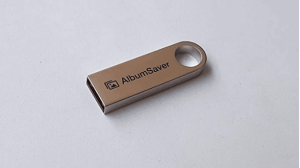
Product Name: Album Saver
Product Description: Album Saver is the physical USB photo and video storage product reviewed here, rather than an app with a similar name.
My verdict
Album Saver is a simple way to keep a separate photo archive, but its organisation tools were less convincing in my use. I would keep another backup and compare currently supported devices before buying old stock.
Pros
- Compact physical storage
- Straightforward saving workflow in my use
- Useful as an additional archive
Cons
- File organisation was inconsistent in my use
- Not a substitute for an independent backup
- Old-stock software and support may not suit current devices
What Album Saver offers
Album Saver is a USB photo-and-video storage device aimed at people who want a separate physical copy of their media without managing another online account. Its attraction is a simple save process rather than a full photo-library application with advanced editing and cataloguing tools.
I used it to bring scattered photographs and videos together. It worked better for me as a personal archive than as a dependable file organiser. That distinction is important: a device can hold a useful extra copy without being the best tool for sorting a large professional library.
If you already own one, the most useful question is whether you can locate, open and restore the files it saves. If you are considering old stock, compatible software and accessible support should come before the product name or a headline photo-count claim.

My experience with saving and organisation
The straightforward save process was the main attraction in my use. It reduced the effort of gathering media into an additional archive, but the organisation features were inconsistent. I would not choose it for work that depends on a carefully maintained folder structure or a professional catalogue.
For a family collection, ease of finding a particular picture matters after the transfer as well as during it. Open the destination folders, check how files are arranged and decide whether that layout will make sense to you later. A large collection saved in an unfamiliar structure can still be difficult to use.
I would inspect a selection of photos and play videos before treating the job as complete. Compare the saved files with the original folders, particularly if the collection comes from several computers or drives. Keep the originals until the copy has been checked and another independent backup is available.
Setup and a sensible backup workflow
Album Saver versions were sold for different devices, including computers and mobile devices. Check the exact version, connector and operating-system requirements before using one. A USB connector fitting the computer is not, by itself, confirmation that its bundled software supports your current system.
- Find the original photo and video folders and check their total size.
- Connect the appropriate drive and confirm that the computer recognises it.
- Use the supplied software only on a supported system and follow its instructions.
- Check the saved folders, open photos and play a sample of videos.
- Keep another independent copy before deleting anything from the source.
- Safely eject the drive and store it separately from the computer.
If originals are stored only in a cloud account, make sure you have the full-resolution files available for the workflow you intend to use. A thumbnail on the computer is not necessarily the original photo. A photo-saving drive also should not be treated as a recovery tool for files that have already been deleted.

Capacity, compatibility and ownership costs
Capacity needs depend on file sizes. Short compressed clips, long high-resolution videos and large TIFF scans consume very different amounts of storage. Check the actual drive capacity against the size of your folders rather than relying on a fixed promise about the number of photographs it will hold.
Leave room for future additions and consider how you will make the second copy. Buying one larger drive does not remove the need for another backup. The full cost is the storage and workflow needed to keep the collection accessible, not just the price of a single stick.
For old stock, ask the seller to identify the version, compatible systems, included software and return terms. Do not assume that software supplied years ago has support for the latest Windows, macOS, iPhone or Android release. If those details are unclear, a currently supported alternative is the safer buying decision.
Alternatives to Album Saver
An ordinary external drive is worth considering if you are comfortable choosing and copying folders yourself. A dedicated photo-backup device can be more convenient when its software supports your devices and makes the saved files easy to inspect. Cloud storage offers another location for a copy, but requires an account and a plan suited to the size of the collection.
ThePhotoStick Omni is one alternative in this category. Compare its actual connectors, supported devices, capacity and current terms against your collection before choosing. It is a different product from Album Saver, so choose it for its own workflow rather than treating it as a replacement with identical features.
Read our photo-stick comparison and the individual reviews to compare the options for your devices.
Check ThePhotoStick Omni Options
Final recommendation
Album Saver makes more sense as an additional personal archive for an existing owner than as a new purchase for someone who needs dependable library organisation and current software support. Its simple saving process was useful, but I would keep another backup and check the files rather than entrusting the whole collection to one drive.
For a new purchase, prioritise compatibility, accessible files, a clear return process and the ability to restore your media. For an existing drive, verify that the archive opens on your computer and make another independent copy while the files are available.
Check ThePhotoStick Omni Options
Frequently asked questions
Can Album Saver be my only backup?
I would keep another independent copy. Check that the saved photos open and videos play before deleting anything from the original device.
How many photos will fit on an Album Saver?
The answer depends on the drive’s actual capacity and the sizes of your photo and video files. Compare your folders’ total size with the available storage rather than relying on a fixed photo count.
Does Album Saver automatically back up cloud-only originals?
Do not assume so. Establish where the full-resolution files are stored and whether the exact software version can access them before starting.
Related Posts


Share this article

Stuart Kerr Spindlow is Pixoneye’s Publisher, Editor-in-Chief and Lead Product Reviewer. He tests consumer products and leads coverage of practical gadgets and personal-media preservation. His reviews focus on usability, limitations, value and the trade-offs that matter when choosing a product. Read Stuart’s full profile.
I bought the AlbumSaver, saved pictures on the drive. NOW not only is the software gone, so are all my photos that were stored on it.
I purchased the photo stick; didn’t use it right away but when i did, a message came up the software disappears if not used. I am wondering what happens to anything I store on it.