

Quick Answer: Use a clean, dry microfiber cloth to wipe a Kindle e-reader screen gently. Lift loose grit before you wipe, and skip sprays, glass cleaner and alcohol wipes unless your exact device manual explicitly permits the product. If a mark stays fixed when the page changes, check whether it is on the screen or in the display before rubbing again.
Fingerprints on a Kindle often look worse under a reading lamp than they do in daylight. A dry cloth is usually enough, but the right next step depends on whether you are looking at oil, loose grit, a screen protector or a display fault. The same advice does not automatically carry over from a Fire tablet to an E Ink Kindle.
What you need to clean a Kindle screen
Start with a soft, clean microfiber cloth, good light and a stable surface. A second clean cloth can help if the first picks up grit or residue. Use a cloth reserved for glasses or displays, and check its edges as well as the main surface; a cloth that has been in a pocket or a tool drawer can carry grit you cannot easily see.
You do not need to buy a kit for routine dust and fingerprints. Leave paper towels, tissues, household glass cleaners, disinfectant wipes, cotton swabs and brushes out of your default toolkit. Water is not a standard second step for an E Ink Kindle. If your exact model’s manual calls for a slightly damp cloth, follow that instruction and keep moisture away from the edges and charging port.

How to clean a Kindle screen without scratching it

- Unplug the reader and put it to sleep. Set it face up on a stable, clean surface. An e-reader may still show its lock-screen image while asleep; that is normal. The goal is to avoid taps and swipes while you work.
- Inspect the screen in angled light. A desk lamp held to one side makes fingerprints and grit easier to tell apart. Lift loose particles gently with a clean corner of the cloth instead of dragging them across the display. If you see trapped grit under a protector, leave it in place until you can deal with the protector separately.
- Wipe with light pressure. Fold the microfiber cloth to expose a fresh face and make a few short passes over the smudge. Hold the reader steady at its edge rather than pressing it against a table or pinching the screen.
- Turn the cloth over when a mark spreads. The cloth may be transferring oil back to the screen. Try a fresh section, or use a second clean cloth. Repeated rubbing with the same patch is less useful than one gentle pass with a clean patch.
- Check the result on a new page. View the screen at the same angle and turn a page. A surface mark is often easier to see in reflection; a line or patch that stays in the same position as the page changes deserves a display check.
What to do when a mark will not come off
| What you see | What to do next | When to stop |
|---|---|---|
| Loose dust or grit | Lift it gently with a clean cloth corner before wiping. | Stop if particles are stuck at a seam; do not scrape or probe. |
| Fingerprint or oily streak | Use a fresh, dry microfiber surface with light pressure. | If a few light passes do not help, check your exact model’s care guide. |
| Bubble, lifted edge or trapped speck | Look for an installed screen protector and identify its edges. | Do not pry at the Kindle’s own screen layers. |
| Fixed line, dark patch or old text | Turn a page, then restart if the display is frozen or slow. | If it persists across content and a restart, contact device support. |
| Liquid near the port or under the screen | Stop cleaning and unplug any cables if safe to do so. Follow the model’s spill instructions. | Do not charge a wet device or try to dry it with external heat. |
How to tell a dirty screen from a display fault
A cleaning check works best when you change one thing at a time. First, turn down the Kindle’s front light or view the screen near a window. Rotate the device slightly without pressing on it. A fingerprint often comes into view where the light catches it, whereas a missing patch of text is easier to see by comparing two pages with different layouts. On a color e-reader, compare the same spot on a plain reading page and a cover image before deciding it is a stain.
If you use a folding cover, check whether the cloth or lining inside the cover is leaving an outline. Clean the cover separately and let it dry fully before putting it back on. If the mark sits under a removable protector, cleaning the top surface will not reach it. Follow the protector maker’s directions rather than inserting a card or blade under the Kindle’s front panel.
Inspect scratches with the screen off or asleep and a light aimed across the surface. A scratch usually changes in visibility with the angle; cleaning will not fill it. A faint trace of the previous page that changes or clears with another refresh can be E Ink ghosting. If a line or blotch persists through different pages and a restart, polishing or pressing the surface will not fix the underlying problem.
Amazon has separate instructions for restarting a Kindle e-reader and factory resetting it. A restart can help an unresponsive display. A factory reset removes downloaded content and deregisters the device; it is unrelated to wiping the glass or plastic surface.
Kindle, Paperwhite and Fire: check the model first
If you are not sure what you own, open Settings, go to Device Options and look for Device Info, or use Amazon’s Kindle model identification guide. Match the model and generation to the official Kindle guides before applying anything beyond the dry-cloth method. Names such as Paperwhite cover several generations, and the care information for a tablet may describe a different display and housing.
Kindle and Kindle Paperwhite
Amazon’s care instructions for the 11th-generation Kindle and the 12th-generation Kindle Paperwhite Signature Edition specify a soft cloth and caution against abrasives. The Kindle Colorsoft Signature Edition instructions give the same basic cleaning advice. Start with the dry cloth for all three and use the model’s documentation for anything more.
A water-resistance rating is not a cleaning recommendation. A waterproof Paperwhite or Colorsoft still has a charging port and seams, and a device that has been dropped or damaged may not retain its original protection. Do not rinse it under a tap to remove fingerprints. On older e-readers with a recessed screen, work away from the edge with a fresh cloth corner rather than scraping at the bezel.
Fire tablets, including older Kindle Fire models
Fire is a separate tablet line. Amazon publishes Fire tablet safety instructions by model; its 7th-generation Fire instructions, for example, call for a soft cloth and warn against abrasive materials. Do not assume a Fire tablet is waterproof or apply advice for a different generation. If the exact Fire manual permits a slightly damp cloth, unplug the device first, dampen the cloth rather than the tablet, and keep moisture out of openings.
What if the cloth picks up sticky residue?
If a drink has dried on the outside and there is no sign it reached an opening, stop after a light dry pass if the patch still sticks. Do not substitute a solvent, scrape it with a fingernail or rub until the display warms up. Look up your exact model’s instructions for whether and how to use a slightly damp cloth. Use a clean edge for each pass so you do not spread the residue along the display. If the Kindle is wet at a seam or port, treat it as a spill instead of a surface cleaning job.
Can you disinfect a Kindle with alcohol?
Cleaning off fingerprints and disinfecting a surface are different jobs. The Kindle and Paperwhite care documents linked above do not specify a household alcohol wipe for routine screen cleaning. Do not substitute a generic 70% alcohol recipe, a disinfectant wipe or a cotton ball soaked in liquid. If disinfection is necessary, look for explicit device-specific instructions from Amazon before applying a chemical or relying on a claimed disinfection result.
A wet wipe may leave more liquid on the screen than expected, and a cloth designed for displays may still be incompatible if it is pretreated. When checking a cleaner, look for guidance for your exact device and any fitted protector, then check the cleaner’s directions. A “safe for screens” label alone does not establish compatibility with every matte display.
Do you need ScreenKlean or a screen protector?

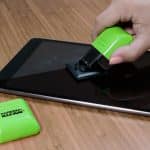
A dry microfiber cloth is the best place to start because it is easy to turn to a clean side as you work. I like the convenience of a dedicated pad for compatible screens. If you are comparing one, see our ScreenKlean review for what comes with the tool and how its replaceable pad works. Use it only when its instructions and the device’s care guidance agree; keep the contact surface free of grit and replace it when worn. A cleaning pad removes visible marks; it does not establish a disinfection result.
A model-specific protector can be useful if the Kindle shares a bag with other equipment or gets used outdoors. A matte protector can change the look of small text or front lighting; a glossy one can add reflections. A cover that closes over the screen may suit you better if the main problem is bag scratches. If a protector has a bubble or lifted corner, identify the protector before peeling anything from the front of the reader.
Keep the screen clean between wipes

- Close the cover before putting the Kindle away. Keep keys, pens and sand out of the same compartment. Wipe loose debris from inside the cover before it contacts the screen again.
- Use a clean cloth as needed. There is no need for a fixed monthly “deep clean.” Launder the cloth according to its instructions and keep it separate from dusty tools and bags.
- Keep the device dry and out of extreme heat. Follow the manual for charging and storage, especially after a spill or a drop. If there is damage or moisture at a port, stop using that port and consult the instructions.
- Save your model’s care guide. If touch response seems off, try a restart before assuming a dirty screen or using stronger products. Software updates and battery care are separate from cleaning the display.
Before you lend, pack or store the Kindle
Check the hinge side of the cover and the inside of the sleeve for crumbs and grit. Pack the reader away from heavy objects that could press on the display. If you lend the Kindle, leave a clean cloth with it rather than asking someone to improvise with a kitchen towel or wipe. For a device you rarely use, check the screen and the case the next time you take it out; dust in the cover can undo a careful clean.
The practical rule: remove loose grit first, wipe fingerprints with a fresh part of a dry cloth, and stop if the mark looks like damage or stays fixed when you change the page. For anything beyond that, the exact Kindle or Fire manual is the best reference.
Frequently asked questions
Will a screen protector reduce Kindle smudges?
A model-specific protector can take the wear that would otherwise land on the screen, but it can still show fingerprints. Matte and glossy protectors also change glare and how the page looks. A closing cover may be enough if you mainly want to protect the reader in a bag.
Can I use household glass cleaner or Windex on a Kindle?
Use a clean, dry microfiber cloth instead. Do not use household glass cleaner as a routine Kindle screen treatment; follow the exact model’s manual before applying any cleaner.
Can I clean a Kindle with an alcohol wipe?
Do not use alcohol wipes on a Kindle e-reader unless the manufacturer’s instructions for your exact model specifically permit them. A recommendation for a different device does not establish compatibility.
How do I remove fingerprints from my Kindle screen?
Wipe lightly with a fresh section of dry microfiber. If the mark spreads, turn the cloth or use a clean replacement. If it remains after a few passes, check the care guide rather than rubbing harder.
Does wiping a Kindle Paperwhite mean erasing it?
Wiping the display with a cloth does not erase anything. A factory reset is a separate software action that removes downloaded content and deregisters the device.
What if a line remains on my Kindle after cleaning?
Turn a page and check whether the mark remains in the same position. If the display is frozen, try Amazon’s restart instructions. Contact device support if a fixed line or patch persists; avoid pressing or polishing the display.
Sources and image credits
ScreenKlean product artwork: ScreenKlean product image. Image: ScreenKlean.
Related Posts
Share this article

Stuart Kerr Spindlow is Pixoneye’s Publisher, Editor-in-Chief and Lead Product Reviewer. He tests consumer products and leads coverage of practical gadgets and personal-media preservation. His reviews focus on usability, limitations, value and the trade-offs that matter when choosing a product. Read Stuart’s full profile.
Leave a Reply