
Quick Answer: Sign in with the email attached to your completed iMemories order. Check the delivered items against your originals, use Cloud for convenient viewing and sharing, then download and verify an independent archive before deciding on ongoing access.
The confusing part is that “using iMemories” covers two different jobs: sending old media away for conversion, and watching the finished files afterwards. The app handles the second job. It does not scan a print or read a VHS cassette through your phone.
This guide takes you from the right account to playback, sharing and independent backups. If you have not sent your originals yet, start with how the iMemories conversion process works, then return here when your order is available.
Start with the right iMemories account
- Open the login link on the official iMemories app page, or use your iMemories account in a browser. Install the mobile app through the store link supplied by iMemories rather than a sponsored lookalike download.
- Sign in with the email connected to your order. If you have several family email addresses, check which one received the order confirmation before making another account.
- Wait for the message confirming that the digitised content is available. An account can exist before its library has been populated.
- If you cannot sign in, use the password-recovery option. Never send a password or payment-card details in an email or public comment.
Already paid but seeing an empty library? First check the account email and order status. A missing library is a different problem from a video that appears but will not play. Keeping that distinction clear makes a support request much more useful.
Which devices can you use?
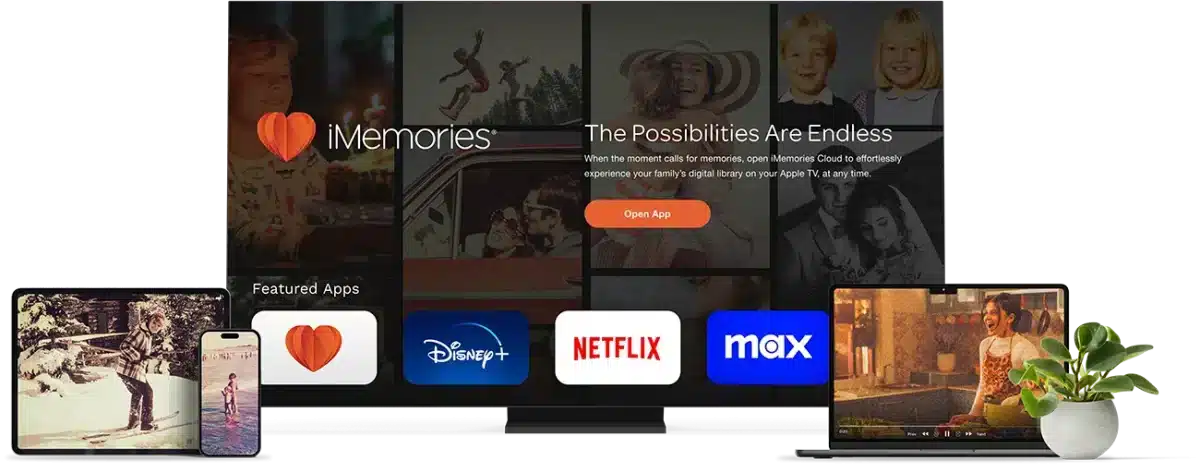
iMemories lists iPhone, iPad, Android phones and tablets, computers and selected smart TVs for its viewing service. “Selected” matters: check the current app listing for your particular television or streaming device before paying for Cloud mainly to watch on a TV. A browser on a PC or Mac is also useful when you want to manage a large download.
App installation, Cloud and downloads are different purchases
As checked on 2 November 2026, iMemories lists Cloud at US$7.99 per month or US$49.99 per year, with a 30-day trial. Prices are shown in US dollars. Read the trial and renewal terms in your own account before enrolling. The conversion of your originals and optional physical copies are separate charges.
The app is free to install, while ongoing Cloud viewing, sharing and storage is a separate subscription. iMemories promotes free downloads during its 30-day trial. Download and verify the entire order within the access window shown for your account; do not assume free online access continues indefinitely after cancellation. Keep your saved files and independent backups outside the app before deciding whether to renew.
US dollars, using the prices checked on 2 November 2026. Conversion and optional copies are excluded.
For a year of continuous access, paying annually is US$45.89 less than twelve monthly payments at these rates. Paying for a year is less attractive if you only need a short period to check and download your order. This comparison concerns subscription cost; it does not change what your original digitisation order costs.
View and check your finished photos and videos
Open several items before sharing the library widely. Choose one short and one longer video, and photographs from different parts of the order. Check that the correct family material appears, the image is the right way up and a video with an original soundtrack has intelligible sound. Silent film or a silent source will not acquire a genuine original soundtrack through digitisation.
An old tape can contain soft focus, recording noise or blank sections. A digitised file can preserve those source limitations. If you suspect an incomplete transfer, note the item name and the point where the problem occurs. “Tape 3 stops at 18:42” is more actionable than “the quality is poor”. Keep your originals while you resolve the question.
If playback or a download fails
Diagnose the point of failure before changing the account or deleting an app. An empty library, a failed stream and a downloaded file that will not open are three different problems. Use the same named item for each comparison so you are testing one variable at a time.
| What you see | Useful comparison | What to send support |
|---|---|---|
| No delivered items appear | Confirm the order is processed and sign in with the order email; check the browser library | Order reference, account email and completion notice |
| One item fails but others play | Open that same item on another supported device | Item identifier, exact timestamp and error |
| Every stream fails on one device | Try another supported device and an ordinary website on the same connection | Device, operating system, app/browser version and whether the other device works |
| The download completes but will not open | Find the actual saved file, check its size and open it locally | Filename, size, download method and player; keep the original download |
For a large library, first download one short video and one photograph into an identifiable folder. Disconnect from the network and open those saved files with a local player or image viewer. This is a practical check that you have files, rather than a browser bookmark, Cloud shortcut or in-app listing. It does not prove the rest of the order has downloaded.
Avoid repeatedly reinstalling the app or clearing its data before identifying which copies exist only on that device. A partly downloaded collection needs reconciliation, not a fresh start that removes the evidence. Keep the completion notice, a simple item list and the failed-file details together. Use the official support routes for account-specific investigation; Pixoneye cannot access the account.
Share a memory without sharing your password
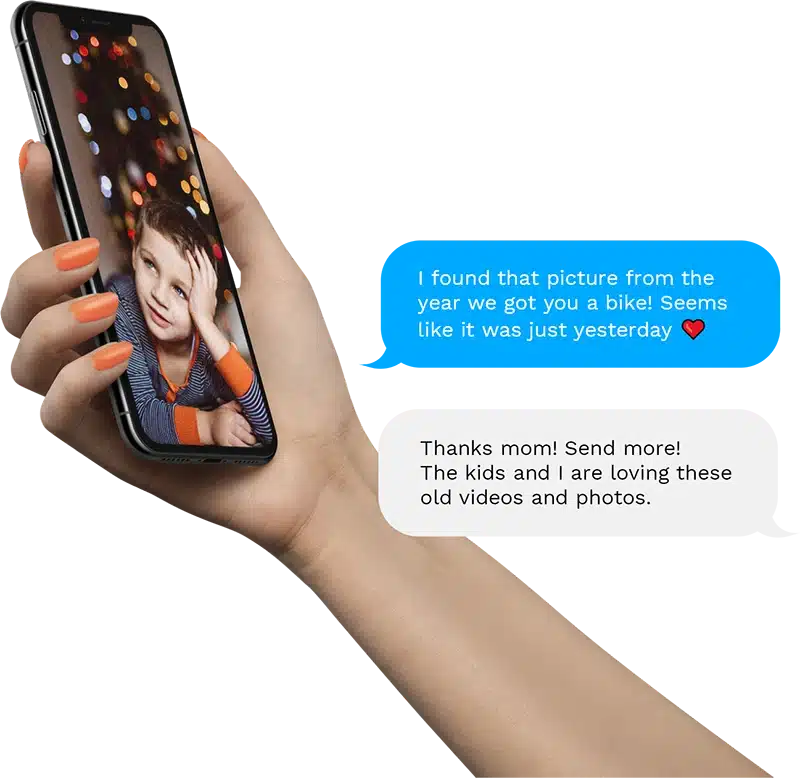
iMemories advertises sharing by text and email from its app. Use the sharing controls offered for the item you want to send, rather than giving relatives your account password. Start with one non-sensitive item and ask the recipient to check that the link or file opens on their device.
Check what is included before sending a whole album. A family video can contain a home address, children or a conversation that someone would not want circulated. Send it to the intended people and explain if it should stay within the family. A recipient can potentially copy or forward material after receiving it.
Sharing access and handing over an archive are also different. If a relative is helping preserve the collection, agree who will keep the full downloaded files and the descriptions of people, places and dates. A convenient message thread is a poor substitute for a labelled family archive.
Download your files and make an independent backup
Use the download option in your iMemories account for the material you want to retain. Exact controls can differ between the app and browser; use the provider’s current help if your screen differs. For a large order, a computer with enough free disk space is usually easier to organise than a phone.
- Download a small sample first and open it outside the iMemories app.
- Save the rest into a clearly named folder. If a download arrives as an archive, keep the original download until you have extracted and checked its contents.
- Check that the expected items are present. Play the beginning, middle and end of important videos; compare a selection of photos with your inventory.
- Make at least one further copy on a separate device or service. For a fuller plan, follow the 3-2-1 backup approach for photos.
- Only then decide whether ongoing Cloud access adds enough convenience for your family. Confirm cancellation and future access arrangements in your account before ending a plan.
Keep an untouched set of the delivered files as your master copy. Make edited clips or smaller sharing versions separately, so a crop, compression setting or accidental overwrite does not become your only copy. Add names and dates in accompanying notes when you cannot safely store that information in the file itself.
A purchased USB drive or disc can be convenient, but it is not an unlimited-lifespan backup. Check it on a compatible device and copy important files elsewhere. Online access, a single USB stick and the original physical media each solve different parts of the preservation problem.
If you have not digitised your originals yet
You can send supported home videotapes, film reels, prints, slides and negatives for conversion. Check the exact format and condition first, especially for damaged film or an unusual cassette. See the service’s format and packing guidance rather than assuming every recording or damaged original is accepted.
The SafeShip Kit is a paid packing option, not a free entitlement. The current main-site instructions describe prepaid UPS shipping to iMemories; follow the label in the kit you actually receive. Do not infer that return shipping of originals or optional copies is included in that inbound label. Offers and shipping arrangements can differ.
iMemories’ terms describe service eligibility for adults in the United States and its territories or possessions. If you are elsewhere, ask about eligibility before ordering or shipping. A working app or website in another country does not establish that an international conversion order is supported.
Before approving the order, check the itemised conversion charge, optional enhancement, physical copies, shipping and Cloud terms. AI enhancement is an optional treatment of a copy, not proof that missing detail has been recovered accurately. Keep an unenhanced version when available if an accurate family record matters.
Reconcile the delivered library with your originals
Work from the inventory you made before shipping. Record the provider’s item name beside your tape, reel or print-group identifier. A tape can contain several events, and one delivery can contain multiple files, so neither a thumbnail count nor a folder count necessarily equals your original item count. Resolve missing or unexpected material before renaming everything into a new family filing system.
Distinguish a missing original, a missing digital item and a playback fault. For a suspected incomplete transfer, keep the original file unchanged and note the exact filename and time where the recording stops or changes. Check the whole length of particularly important videos when practical; a beginning-and-end spot check cannot establish that every scene or audio channel survived. Ask support how split recordings or unprocessable items appear in the order.
Confirm where a download actually lives
A file opened from a recent-download list may still be in temporary storage or a synchronised folder. Locate the saved file in your device’s file manager, check its size and open it in an ordinary compatible player outside the iMemories app. Test a copy while offline to distinguish a local file from a link that still relies on online account access. Do not delete the account copy or physical original as part of that test.
For an archived download, allow room for both the downloaded package and its extracted contents if the device keeps both. Download in labelled batches when the collection is larger than your available workspace. Keep each original download until the extracted files open correctly. If a browser reports an interrupted download, resolve that error before moving on; a filename alone is not proof of a complete video.
Hand over an archive that relatives can understand
Keep the delivered files unchanged in a master folder. Add a separate index that links provider filenames to people, occasions, approximate dates and the physical original. Distinguish a known date from a family estimate. Make a smaller edited clip for a message rather than overwriting the master with a cropped or compressed version.
Agree who will hold the independent archive and who needs convenient viewing access. Test one ordinary shared item with its intended recipient before sending a whole collection. A working link on your own signed-in device does not prove that it opens for someone else. Do not send account passwords to solve a sharing problem. If a recipient cannot open the item, check the supported sharing method and their device rather than assuming that public access is necessary.
Choose the subscription after checking your saved copies
Cloud is an ongoing convenience decision, separate from whether the conversion order was worthwhile. At the displayed US rates, six monthly payments are $47.94, seven are $55.93 and an annual payment is $49.99. Annual payment becomes cheaper than seven monthly payments only if the same included service and renewal conditions suit you; the lower unit price does not refund unused months.
Before cancelling or changing access, confirm the terms shown in your own account, finish the intended downloads and restore a sample from your independent backup. Do not assume that cancellation deletes the library immediately, or that the files will remain downloadable indefinitely. Keep order confirmations, receipts and support-case references separately so another family member can identify the collection if you lose access to the usual email or phone.
The best way to use iMemories
Use Cloud if easy viewing and family sharing are worth an ongoing payment to you. Use free downloads and your own backups if your main aim is to keep an independent archive. Many families will sensibly do both: check and share the order online, then keep verified files elsewhere.
Frequently asked questions
Is the iMemories app free?
The app is free to install. Ongoing Cloud viewing, sharing and storage is a separate subscription after the trial. Digitisation and optional physical copies are separate purchases.
Can I download my iMemories files without keeping Cloud?
iMemories promotes free downloads during its 30-day trial. Save and verify the complete order within your account access window, and confirm cancellation terms before ending Cloud. Existing independent files do not require Cloud playback.
Does the app convert VHS tapes through my phone?
No. Physical tapes, film and photographs are converted through the mail-in service. The app is for accessing the finished digital library.
Can I watch iMemories on any smart TV?
iMemories supports selected smart TVs and other supported devices. Check the current app listing for your exact TV or streaming device rather than assuming all smart TVs work.
What should I do if my library is empty?
Check that you are using the email attached to the order and that digitisation is complete. If the order should be available, contact iMemories with the order details; do not create multiple accounts or share your password.
Sources and image credits
iMemories’ family-sharing illustration. Image: iMemories.
Related Posts


Share this article

Stuart Kerr Spindlow is Pixoneye’s Publisher, Editor-in-Chief and Lead Product Reviewer. He tests consumer products and leads coverage of practical gadgets and personal-media preservation. His reviews focus on usability, limitations, value and the trade-offs that matter when choosing a product. Read Stuart’s full profile.
Leave a Reply